Account & Organization
Account settings are accessed from the My Account menu in the top-right corner of the app. From there you can manage your personal profile, your Organization, Billing, and API Keys. You can also switch between organizations using the organization selector at the top of the app.
This page covers your profile and organization details. See also: API Keys and Billing & Plans.
My Account
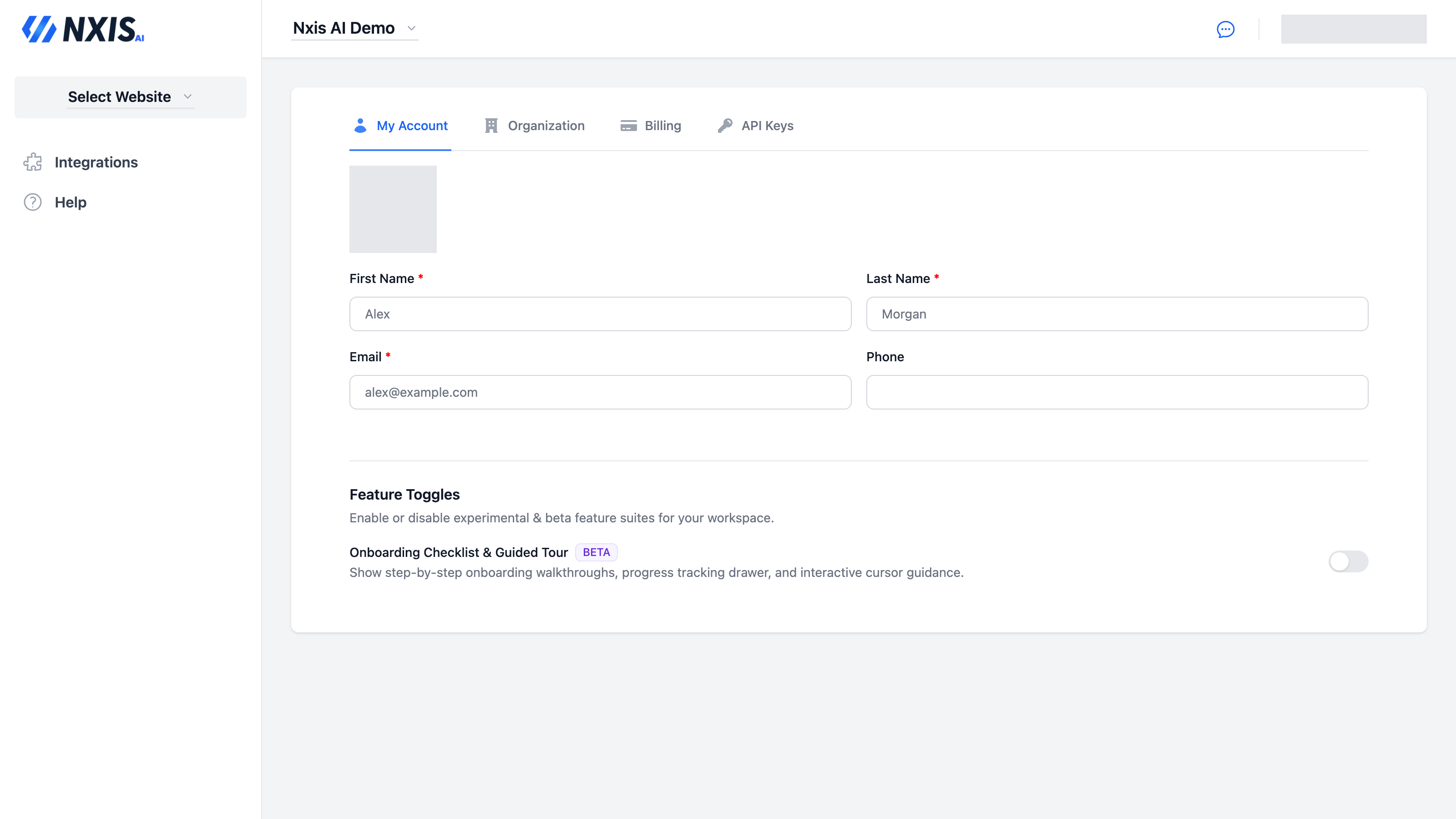 The My Account tab manages your personal profile information.
Manage your personal profile information.
Profile picture
Your avatar appears at the top of the tab. Click the image to upload a new profile picture.
Fields
- First Name (required) — your given name.
- Last Name (required) — your family name.
- Email (required) — the address used for login and notifications.
- Phone (optional) — your contact phone number.
Organization
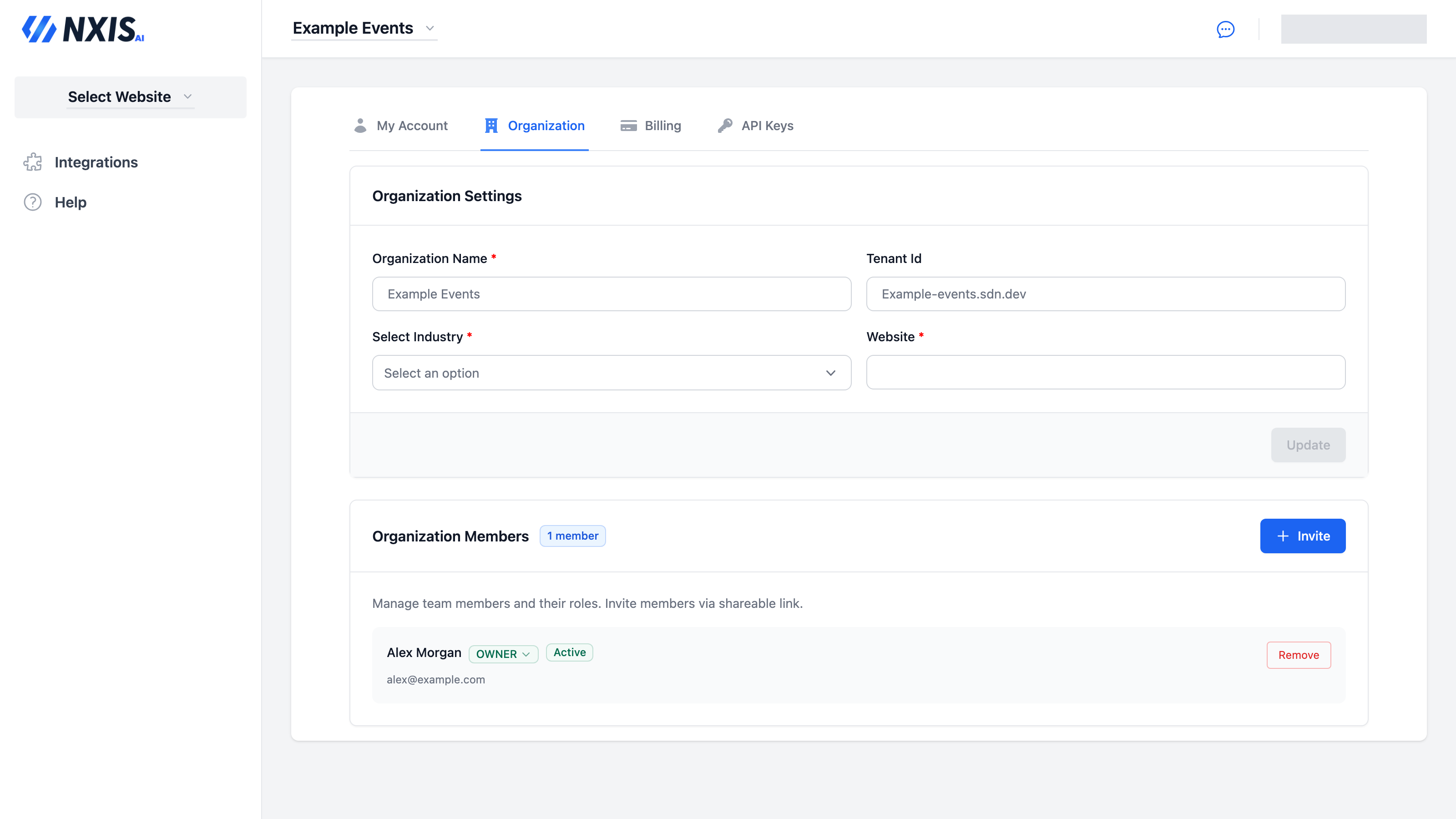 The Organization tab manages your workspace details.
Manage the high-level details of your workspace.
Fields
- Organization Name (required) — the display name for your organization. Shown at the top of the app.
- Tenant Id — a read-only field showing the unique slug for your organization's sub-domain.
- Select Industry (required) — the industry your business operates in.
- Website (required) — the primary website associated with this organization.
Click Update to save changes.
Team Members
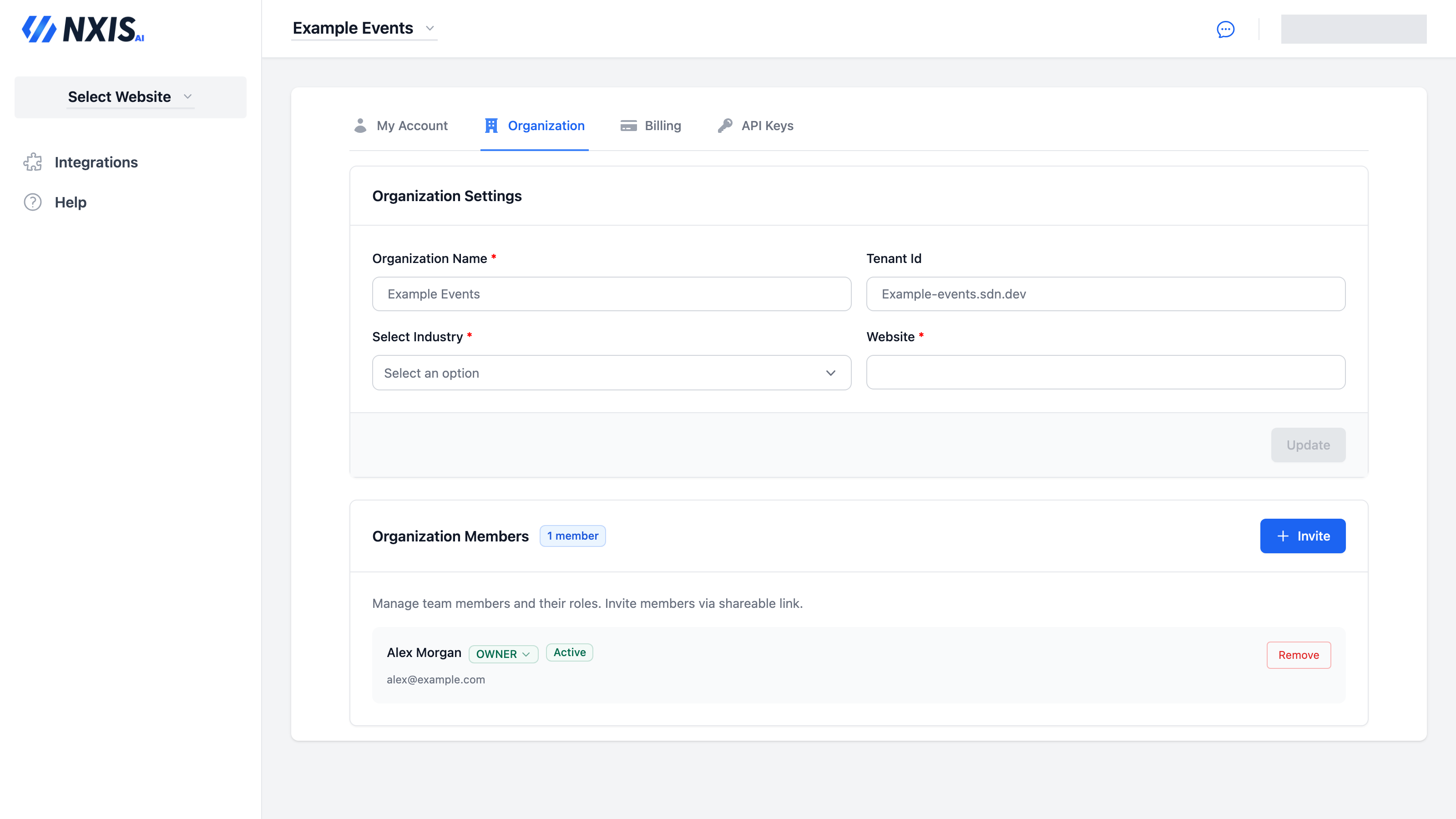 The Team Members tab manages workspace access.
The Team Members tab lets organization administrators manage who has access to the workspace, invite new users, and assign roles and permissions.
Detailed Team Members documentation is coming soon.