Turn On Hosted Agents
There are two ways to set up the hosted agents: Agents in the dashboard, or the nxis CLI from a terminal or a coding agent. Both save the same settings, and either can pick up where the other left off. Going live happens in the dashboard.
Before you start, you need:
- A verified site. The agents answer only on verified hosts. See Site settings.
- Indexed records. The agents answer from your site's records, so crawl and review your resources first.
- NXC credits. Hosted agents bill to your organization's NXC credits at the rate of the model they use. See Billing.
In the dashboard
Open Agents in the sidebar. The overview shows the On-page assistant, the specialists it hands questions to (the Support Agent), agents suggested for your site, and where your setup stands.
The Onboarding Roadmap beside it has a Hosted agents stage with three tasks, in order. Select a task to see what it involves, or Jump to current todo for the next one. You can hide the roadmap with Onboarding Checklist & Guided Tour under My Account; the tasks below work the same without it.
| Task | Where you do it |
|---|---|
| Turn on your agents | Each agent's Setup tab: turn the on-page assistant and the Support Agent on, and give the Support Agent a Name, what visitors read when the assistant offers to hand over |
| Set hours, limits and transcripts | The Usage and limits tab (opening hours and the monthly spend cap) and the Transcripts tab |
| Preview, then go live | The Preview, then go live card on the overview, with the data processing agreement |
Each agent has its own page under Agents (On-page assistant, Support) with tabs for Setup, Behavior, Knowledge, Handoffs, Transcripts and Usage and limits. Save a change with Save changes; it reaches your site within seconds.
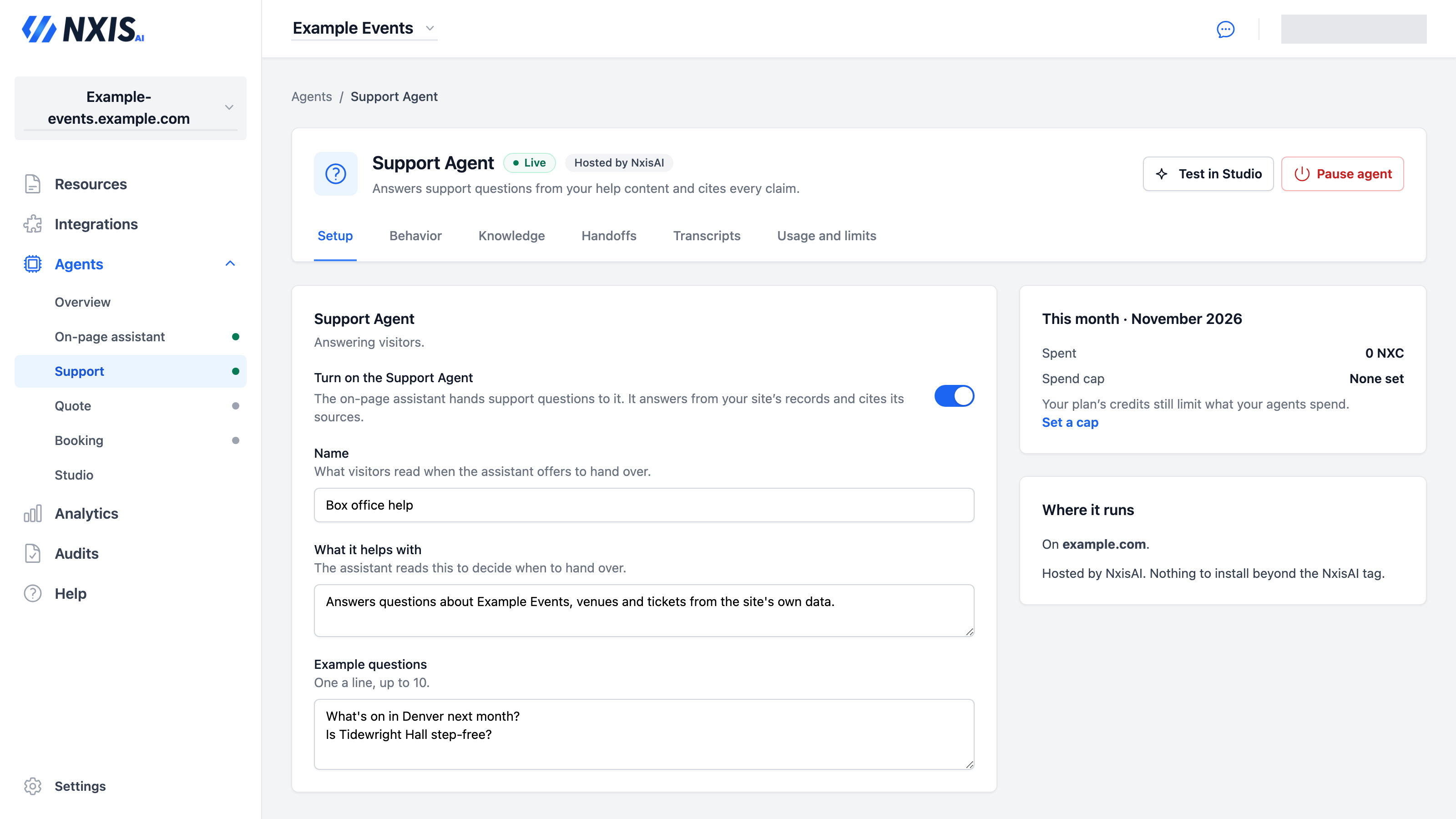 The Support Agent's Setup tab: its name, what it helps with, and example questions.
On the Support Agent's Setup tab you can also describe What it helps with (the assistant reads this to decide when to hand over) and add up to ten Example questions. On the on-page assistant's Setup tab, Branding sets the chat's name, logo, accent color, greeting and privacy page, with a preview of how it looks on your site.
The settings that apply to every hosted agent on the site:
- Opening hours (Usage and limits): when a person is available, so the agents can say so. Leave every day closed and the time zone empty for none.
- Monthly spend cap (Usage and limits): the most the site's hosted agents spend in a calendar month, in NXC. Leave it empty for no cap of its own; your credits still limit it. See Spending.
- Transcripts (Transcripts): how many days conversations are kept (30 by default), or Don't store transcripts. See Transcripts.
Add an agent opens Browse all agents, the catalog of agents NxisAI offers or is building, with how well each fits your site. The hosted agents you can add today are the on-page assistant and the Support Agent; for the others you can ask for access or to be notified. See Agent Catalog.
From the CLI
The nxis CLI sets up the same agents. It acts on the organization and site you selected with nxis orgs use and nxis sites use, or on the ones you pass with --org and --site. You must be signed in (nxis login).
Turn the agents on:
nxis agents enable page
nxis agents enable support --label "Help team" \
  --description "Questions about orders, delivery and returns" \
  --example "Do you ship to Canada?" --example "How do I return an item?"
The Support Agent needs --label, the name visitors read (at most 100 characters). --description is at most 300 characters, and --example repeats, up to 10 questions of at most 200 characters each; giving --example replaces the whole list. --model picks the model; without it, the agent uses the default. nxis agents disable page|support turns an agent off and keeps its settings.
See what runs on the site:
nxis agents status
Hosted agents for site 0123456789abcdef01234567 (version 13)
  On-page assistant  on, default model
  Support Agent      on, default model, label "Help team"
                     MCP server https://example.com/mcp (public)
  Kill switch        off
  Policy             v12
  Transcripts        stored, kept 30 days, no webhook
  Verified hosts     https://example.com
status also says whether visitors reach the agents yet, and what holds back going live. Add --json to any command for one machine-readable object.
nxis agents policy show prints the guardrails policy as stored, and nxis agents policy set <file.json> replaces it. A policy can tighten the hosted limits, never loosen them.
Preview, then go live
A new site's hosted agents start in preview. In preview they answer you in Studio, and no visitor on your site reaches them. Each agent's status shows Preview until you go live, then Live.
The Preview, then go live card on the Agents overview shows where the site stands, with Try it in Studio. While the site is in preview, it has a Go live button: select it, and visitors on your verified pages reach the agents within seconds. Go live is available once an agent is on and your organization has accepted the current data processing agreement; until then, the card says what's missing.
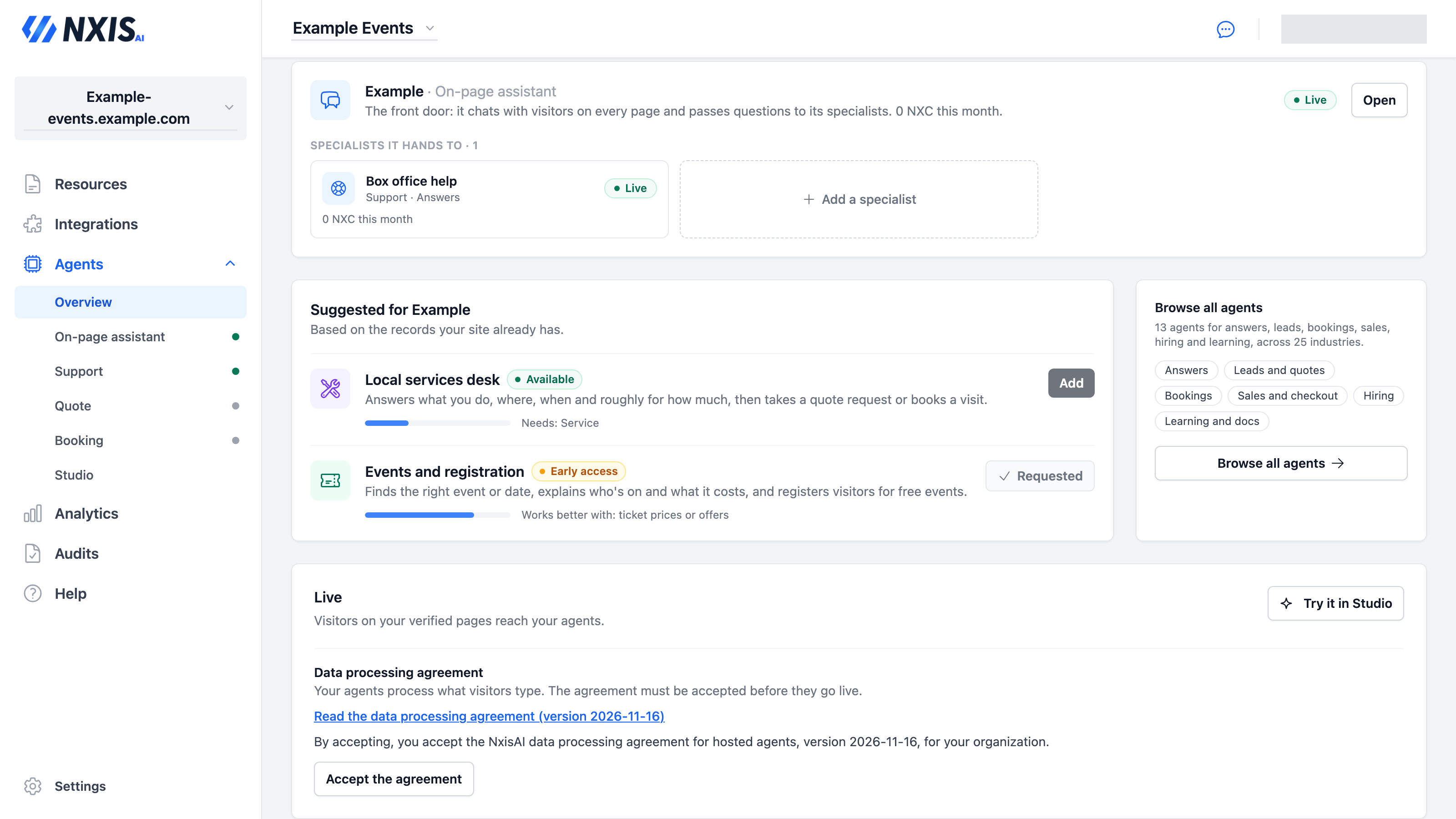 The go-live card: where the site stands, Try it in Studio, and the data processing agreement.
Going live is done in the dashboard. The CLI's status shows whether the site is in preview and what it's waiting for.
Accept the agreement
NxisAI processes what visitors type to the hosted agents under its data processing agreement. Read it before you accept. Each version has its own address, such as https://nxis.ai/dpa/2026-11-16, and the newest is always at https://nxis.ai/dpa.
-
Who accepts: a person signed in to your organization, on its behalf. NxisAI records the version, who accepted it and when.
-
Once per organization: the acceptance covers all of your organization's sites. A site that belongs to a different legal entity is accepted separately, by that entity, for that site only.
-
In the dashboard: in the Data processing agreement panel of the go-live card, open Read the data processing agreement, then select Accept the agreement. Once accepted, the panel shows the version, who accepted it and when. When a newer version is published, the panel says so and offers to accept it.
-
From the CLI:
nxis agents dpa          # the current version, its link, and who accepted it and when
nxis agents dpa accept   # shows the version and its link, then asks you to confirm
dpa acceptalways accepts the current version, the one it shows. In a script with no terminal, it needs--yes, which you add only once you've read the agreement and agree to it.
When a new version is published
NxisAI publishes each new version at its own address and announces it in the dashboard and the CLI. Earlier versions stay published, unchanged.
Your organization is prompted to accept the new version. The previous version keeps applying for 30 days. If the new version hasn't been accepted by then, your sites' hosted agents return to preview, where they aren't served to visitors, until someone accepts it.
Related
- Hosted agents overview: what the agents do and how they differ from agents you run yourself
- Transcripts: storage, the webhook and export
- Pause, limits and retention
- NxisAI CLI